How To Achieve Good Lip Sync And Dialogue With Veo 3 Native Audio

The landscape of AI filmmaking has shifted dramatically. In 2026, we no longer settle for “good enough” when it comes to character speech. With the release of Veo 3, Google’s flagship generative video model, the gap between AI-generated content and Hollywood-grade production has vanished.
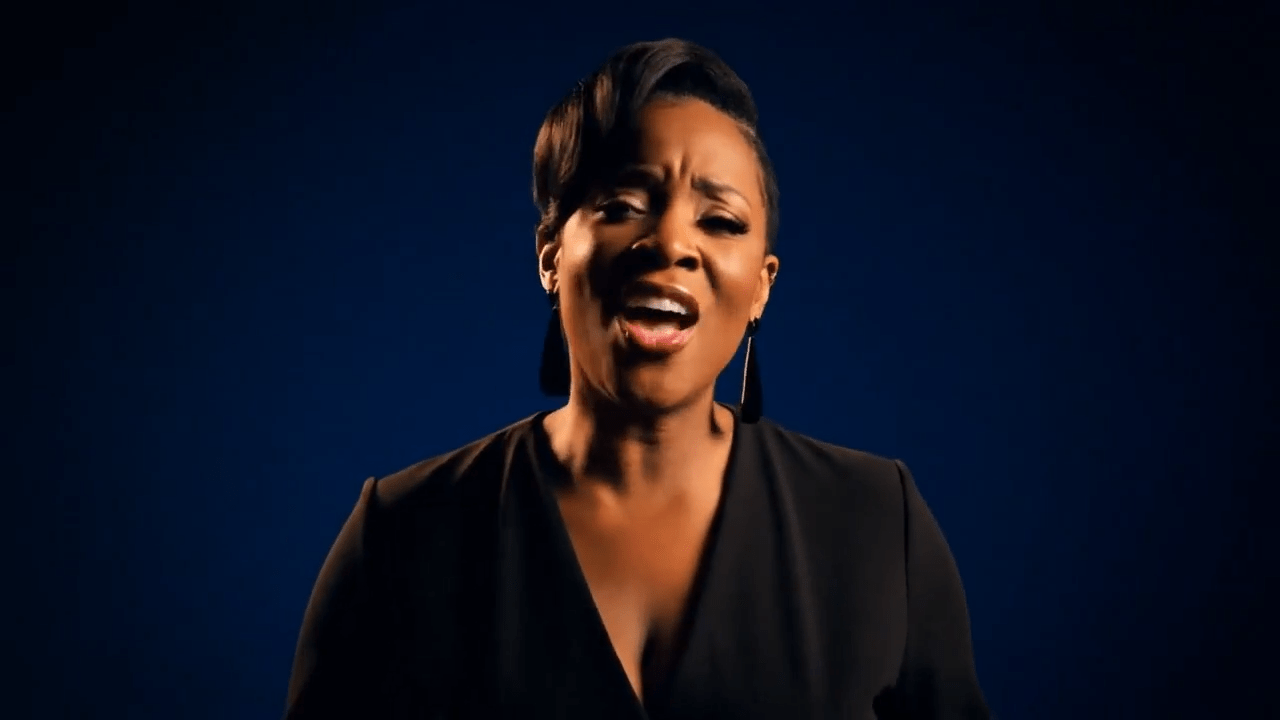
The secret sauce to this revolution is Veo 3 native audio. Unlike older models that required third-party tools like ElevenLabs or HeyGen for post-production syncing, Veo 3 generates video and audio simultaneously. This multimodal approach ensures that every phoneme matches the lip movement with surgical precision.
Why Native Audio is the Game Changer in 2026
In previous years, creators struggled with “audio drift,” where the voice would slowly desync from the mouth movements over a long shot. Veo 3 native audio solves this by using a unified latent space. The model understands the relationship between the sound of a “P” or “B” and the physical closing of the lips.
By leveraging native dialogue generation, you achieve:
- Micro-expression consistency: The eyes and cheeks move in harmony with the intensity of the speech.
- Zero latency syncing: No more manual alignment in Premiere Pro or DaVinci Resolve.
- Environmental acoustics: The audio automatically reflects the setting (e.g., a voice echoing in a cathedral or sounding muffled in a rainy street).
Crafting the Perfect Speaking Prompt for Veo 3
To get the best results, your prompting strategy must evolve. In 2026, Veo 3 prompts are no longer just descriptions; they are scripts. You must define the who, the what, and the how of the dialogue.
The Anatomy of a High-Conversion Speaking Prompt
A successful prompt should follow this structure: `[Character Description] + [Action/Setting] + [Dialogue String] + [Emotional Tone/Vocal Texture]`.
Example Prompt:
“A rugged 40-year-old explorer in a dimly lit cave, holding a torch. He looks directly into the camera and says, ‘We shouldn’t have come here; the walls are breathing.’ His voice is a raspy whisper, filled with genuine terror, with a slight British accent.”
By specifying the vocal texture (raspy whisper) and accent, you give the Veo 3 engine the necessary parameters to shape both the waveform and the facial muscle movements.
3 Pro-Tips for Flawless Lip Syncing
Even with the power of Veo 3, certain technical choices can make or break your realism. Follow these guidelines to ensure your characters don’t fall into the “uncanny valley.”
1. Prioritize Lighting on the Lower Face
Veo 3’s phoneme mapping works best when the mouth is clearly visible. If your character is in deep shadow, the AI may struggle to define the lip boundaries, leading to “mushy” dialogue. Use prompts that include “cinematic rim lighting” or “soft key light on face” to enhance clarity.
2. Manage “Phonetic Complexity”
While Veo 3 is incredibly advanced, rapid-fire dialogue or complex technical jargon can sometimes lead to slight artifacts. If you notice a glitch, try breaking the dialogue into shorter sentences. Use punctuation markers (commas and ellipses) in your prompt to signal natural pauses to the AI.
3. Camera Angles Matter
For the most realistic AI lip sync, use “Medium Close-Up” or “Close-Up” shots. Extreme wide shots make it difficult for the model to dedicate enough pixel-density to the mouth movements. Conversely, extreme “Macro” shots might reveal slight texture stretching during wide mouth movements.
Troubleshooting Common Veo 3 Audio Issues
Even the best creators hit snags. Here is how to fix the most common 2026 Veo 3 audio bugs:
- The “Silent Video” Bug: Ensure your prompt explicitly contains a dialogue string wrapped in quotation marks. If you just describe a person talking without providing the text, Veo 3 may generate a silent “talking head” video.
- Wrong Accent or Tone: If your character sounds too robotic, add descriptive adjectives like “breathy,” “gravelly,” “melodic,” or “staccato.” The more descriptive your vocal metadata, the more human the output.
- Inconsistent Character Voice: In 2026, Veo 3 allows for “Voice Seeding.” If you are creating a series, use a consistent Voice ID tag in your advanced settings to ensure your protagonist sounds the same in every clip.
Advanced Techniques: Integrating Music and SFX
Veo 3 isn’t just for dialogue; it’s a full soundstage. To achieve a truly immersive experience, you can prompt for layered audio.
Try adding a “Background Audio” layer to your prompt:
“…says ‘Welcome home,’ while soft lo-fi jazz plays in the background and the sound of rain hits the window pane.”
The multimodal architecture of Veo 3 will duck the music volume automatically when the character speaks, mimicking a professional sound engineer’s “side-chaining” technique. This level of automation is what makes Veo 3 the industry leader in 2026.
The Future of Generative Dialogue
As we move further into 2026, the distinction between “AI video” and “real video” is becoming a matter of philosophical debate rather than visual quality. By mastering Veo 3 native audio, you aren’t just making clips; you are directing digital actors.
The key to success lies in the balance between detailed prompting and allowing the AI’s generative creativity to fill in the nuances. Experiment with different emotional weights and environmental settings to see how the native audio engine adapts.
Conclusion
Achieving perfect lip sync in Veo 3 is a blend of art and science. By focusing on clear lighting, descriptive vocal prompts, and leveraging the model’s native multimodal capabilities, you can produce content that was once thought impossible for AI. Whether you are a solo YouTuber or a professional creative director, these tools offer a level of control that defines the new era of storytelling.