How To Use Veo 3.1 For Virtual Background Generation For Zoom

In the rapidly evolving landscape of 2026, the professional world has moved far beyond the simple “blur” effect for video calls. As remote work and hybrid meetings remain the standard, your digital presence is your first impression. Google Veo 3.1 has emerged as the gold standard for AI video generation, offering creators and professionals the ability to design cinematic, high-definition environments that were once only possible in Hollywood studios.
Using Veo 3.1 for virtual background generation for Zoom isn’t just about hiding a messy room; it’s about branding, atmosphere, and professional storytelling. With its native 1080p output and advanced creative controls, Veo 3.1 allows you to craft backgrounds that are stable, consistent, and visually breathtaking.
In this comprehensive guide, we will explore how to leverage the latest features of Veo 3.1 to transform your Zoom meetings into immersive experiences.
What Makes Google Veo 3.1 the Best Choice in 2026?
Before diving into the “how-to,” it is essential to understand why Veo 3.1 is the superior tool for virtual backgrounds compared to its predecessors. While earlier iterations of AI video models struggled with flickering and low resolution, Veo 3.1 introduces a level of creative control that is unprecedented in the generative AI space.
Native 1080p Quality and Beyond
One of the primary complaints about AI-generated backgrounds in the past was the “uncanny valley” effect caused by low-resolution artifacts. Veo 3.1 generates video in native 1080p quality, ensuring that your background looks sharp even on large 4K monitors. This clarity is vital for maintaining a professional image during high-stakes board meetings or webinars.
Enhanced Temporal Consistency
There is nothing more distracting than a virtual background that “glitches” or shifts every few seconds. Veo 3.1 utilizes advanced temporal consistency algorithms, meaning the elements in your background—like a swaying plant or a flickering candle—move realistically without the warping effects common in older models.
Longer Durations for Seamless Loops
Zoom backgrounds work best when they can loop without a noticeable “jump.” Veo 3.1 allows for longer video durations, giving you more footage to work with. You can generate a 60-second high-quality clip and loop it seamlessly, creating a natural environment that doesn’t feel repetitive.
Setting Up Your Workspace for Veo 3.1
To begin generating your custom backgrounds, you need access to the Google Cloud ecosystem or the specific creative tools integrated with the Veo 3.1 API. In 2026, most users access this through Vertex AI or dedicated creative platforms that have licensed Google’s technology.
Accessing the Model
- Google Cloud Account: Ensure you have an active Google Cloud account with the Vertex AI API enabled.
- Model Selection: From the model garden, select Veo 3.1. Note that Veo 3.1 offers significant upgrades over version 3.0, specifically in prompt adherence and cinematic lighting.
- Hardware Requirements: Since the heavy lifting is done in the cloud, you don’t need a supercomputer. However, a stable internet connection is required to preview and download the high-bitrate 1080p files.
The Ultimate Prompting Formula for 2026
The secret to a great Zoom background lies in the prompt. You aren’t just asking for a “nice office”; you are directing a scene. Veo 3.1 responds best to a structured prompting framework that includes subject, environment, lighting, and camera terminology.
The 5-Step Prompting Framework
To get the most out of Veo 3.1, use this formula:
[Subject/Setting] + [Atmospheric Details] + [Lighting Style] + [Camera Perspective] + [Motion Intensity]
Subject/Setting: A minimalist Scandinavian home office with floor-to-ceiling windows.
Atmospheric Details: Lush green Monstera plants in the corner, a soft rain falling outside the glass, a bookshelf with leather-bound books.
Lighting Style: Soft morning sunlight, cinematic “golden hour” glow, or moody “cyberpunk” neon.
Camera Perspective: Wide-angle shot, static camera, shallow depth of field (to keep the focus on you when you’re in front of it).
Motion Intensity: Subtle motion, slow-moving clouds, gentle swaying of leaves.
Example Prompt for a Professional Background:
“A high-end, modern executive office with a view of a futuristic Tokyo skyline at dusk. Minimalist furniture, soft ambient blue lighting, 1080p, cinematic quality. The camera is static. Subtle movement of traffic lights in the distance. Photorealistic, 24fps.”
Step-by-Step Guide: Generating and Exporting for Zoom
Follow these steps to move from a blank prompt to a live Zoom background.
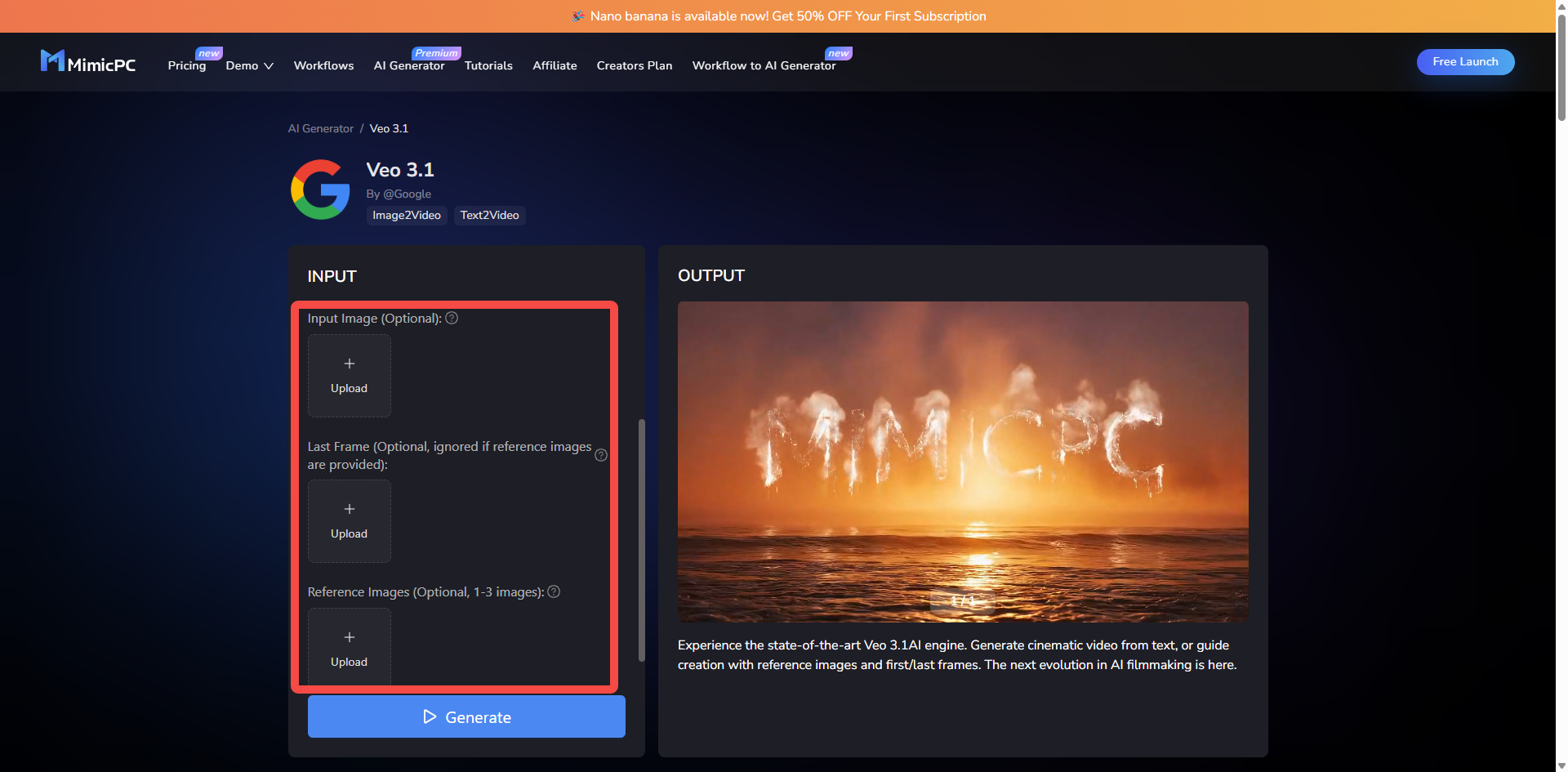
Step 1: Inputting Your Parameters
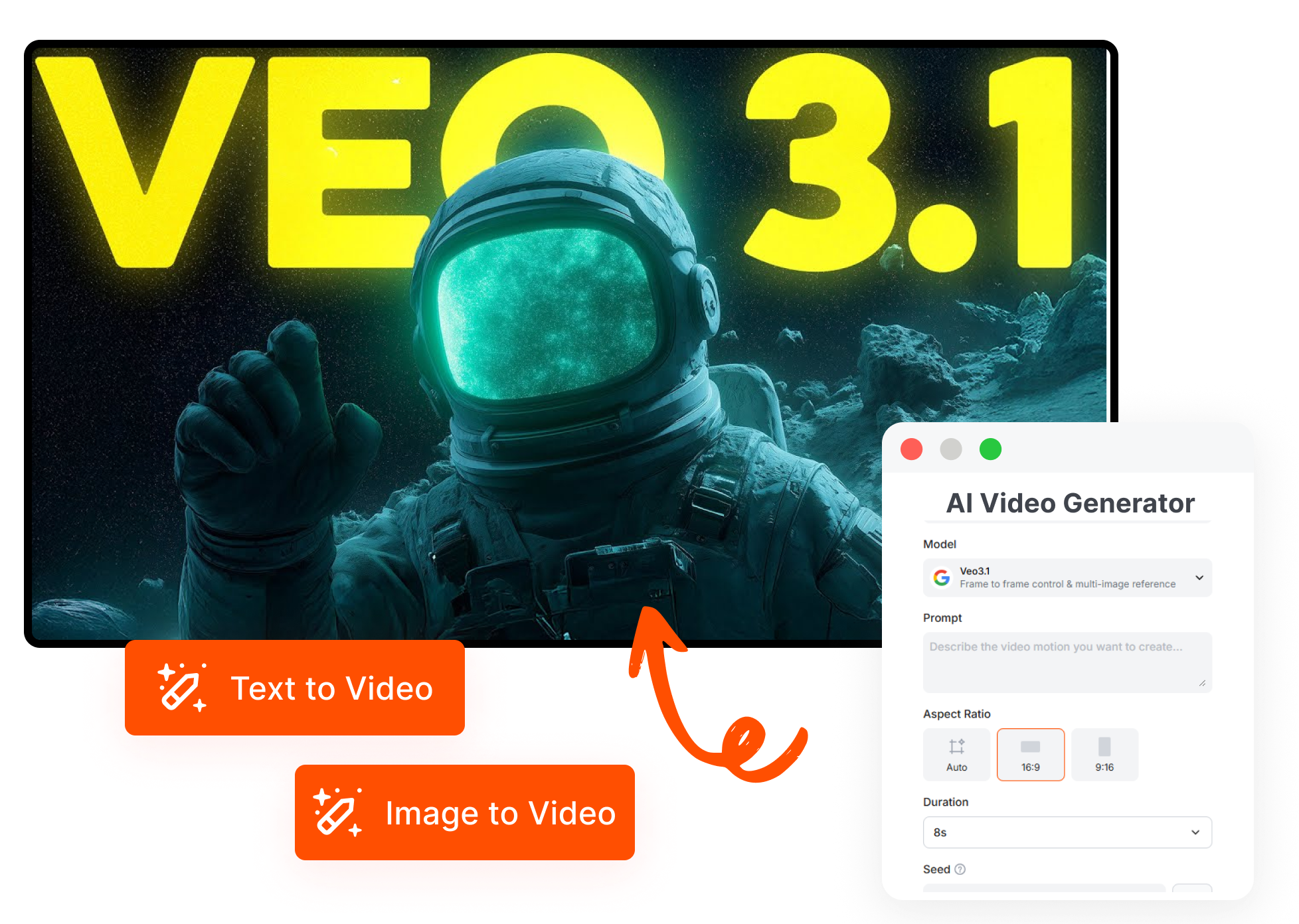
Once you have your prompt, enter it into the Veo 3.1 interface. In 2026, the interface allows you to toggle “Motion Score.” For Zoom backgrounds, keep the motion score between 2 and 4. Anything higher might be too distracting for your viewers.
Step 2: Selecting Aspect Ratio
Zoom typically uses a 16:9 aspect ratio. Ensure you select this in the settings. While Veo 3.1 is famous for its new vertical video generation capabilities (perfect for TikTok or mobile calls), desktop Zoom calls still require the traditional landscape format.
Step 3: Generating the Video
Hit “Generate.” Veo 3.1 will provide a few variations. Look for the one with the most stable lighting. Because Zoom uses “Green Screen” technology to cut you out, a background with high contrast between the background and where your head will be is ideal.
Step 4: Extending the Clip
If you find a 10-second clip you love, use the “Extend Video” feature in Veo 3.1. This feature allows the AI to look at the last frame of your video and generate a continuation that is perfectly consistent. This is how you create a 30-60 second background that feels like a real, living room.
Step 5: Exporting for Quality
Export your file as an MP4 or MOV. Aim for a file size under 50MB to ensure Zoom can process it smoothly without taxing your computer’s CPU during the meeting.
How to Upload Your Veo 3.1 Creation to Zoom
Now that you have your cinematic AI-generated video, it’s time to go live.
- Open the Zoom Desktop Client.
- Click on your Profile Picture and select Settings.
- Navigate to Background & Effects.
- Click the + (Plus) icon and select Add Video.
- Choose your Veo 3.1 generated file.
- Pro Tip: Ensure “Mirror my video” is checked or unchecked based on how you want the background text (if any) to appear.
Advanced Creative Controls: Cinematic Backgrounds
One of the standout features of Veo 3.1 is its understanding of cinematic terminology. To make your background look like a professional set rather than a flat image, incorporate these terms into your workflow:
Depth of Field (Bokeh)
Use the term “Shallow depth of field” or “f/1.8” in your prompt. This will slightly blur the furthest parts of your AI office, which mimics the way a high-end DSLR camera works. This makes the transition between your real-life silhouette and the virtual background look much more natural.
Global Lighting Consistency
If you have a desk lamp with a warm yellow bulb, prompt Veo 3.1 for a “Warm, tungsten-lit interior.” Matching the AI’s lighting to your physical room’s lighting is the “secret sauce” for a believable virtual presence.
Why 2026 is the Year of the “Smart” Background
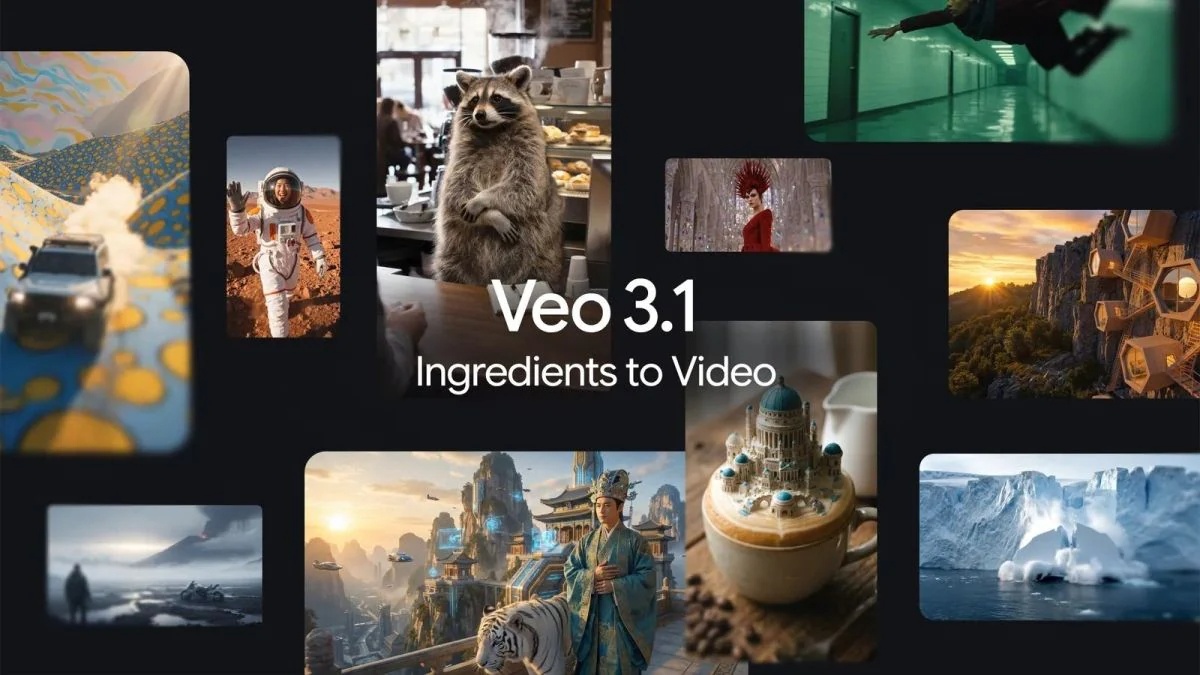
By 2026, virtual backgrounds have evolved from static novelties to functional tools. Veo 3.1 supports video-to-video generation, meaning you could take a shaky video of your actual messy office and use Veo 3.1 to “re-skin” it into a luxury penthouse while keeping the basic geometry of your room.
This allows for:
Brand Integration: Automatically generating backgrounds that incorporate your company’s color palette and logo into the “architecture” of the AI room.
Dynamic Moods: Changing your background from a “bright morning office” to a “cozy evening study” as your workday progresses.
Consistency Across Teams: Companies are now using Veo 3.1 to generate “Brand Kits” where every employee has a unique but stylistically consistent AI-generated office.
Best Practices for Zoom Backgrounds in 2026
To ensure you stay professional and avoid the pitfalls of AI generation, keep these tips in mind:
Avoid High-Motion Subjects: Do not include people or animals in your AI background. Veo 3.1 is great at generating them, but having a “ghost” person walking behind you in a Zoom call is incredibly distracting.
Check for Hallucinations: Always review your 1080p output for “AI artifacts.” Look at the corners of the room or the legs of chairs. If they look warped, regenerate the clip.
Lighting is Key: We cannot overstate this—your physical face must be well-lit. If you use a dark, moody Veo 3.1 background but your face is bright and washed out, the illusion will break.
Looping Points: Use a video editor to fade the end of your clip into the beginning for a “seamless loop” if the Veo 3.1 extension isn’t perfectly cyclical.
Troubleshooting Common Issues
The Background is Lagging
If your Zoom video is stuttering, it’s likely because the 1080p Veo 3.1 file is too high in bitrate. Try re-exporting the video at a lower bitrate (around 5-8 Mbps) or reducing the resolution to 720p. While Veo 3.1 can do 1080p, Zoom often compresses video anyway.
The AI “Hallucinated” My Logo
If you are trying to include specific text or logos, Veo 3.1 is much better than previous versions, but still not perfect. For 100% accuracy, generate the background without the logo first, then use a standard video editor to overlay your company logo on the wall of the AI-generated room.
Conclusion: The Future of Virtual Presence
The release of Google Veo 3.1 has fundamentally changed how we perceive digital space. By mastering the art of virtual background generation for Zoom, you are doing more than just picking a wallpaper; you are utilizing cutting-edge generative AI to curate your professional identity.
In 2026, the quality of your video feed is a reflection of your technical literacy and attention to detail. With its 1080p native quality, cinematic controls, and incredible prompt adherence, Veo 3.1 is the ultimate tool for anyone looking to stand out in a sea of blurred boxes. Start experimenting with the prompting formulas provided today, and transform your next Zoom meeting into a cinematic event.