
The evolution of AI-generated video has been nothing short of revolutionary, but even with the advanced capabilities of Veo 3.1, creators often face the same frustrating hurdles: micro-flicker, camera stutter, and the dreaded identity drift. If you’ve spent hours crafting the perfect prompt only to have your output ruined by jittery motion, you aren’t alone.
As we navigate the creative landscape of 2026, understanding the technical nuances of diffusion models is the difference between a amateur-looking clip and a cinematic masterpiece. In this guide, we will break down exactly how to diagnose these artifacts and, more importantly, how to eliminate them using the latest Veo 3.1 prompt framework and workflow optimizations.
Why Does Jitter Happen in AI Video?
To fix the jitter, you must first understand the “why.” At its core, Veo 3.1 generates video by predicting pixel movement across a temporal sequence. When the model struggles to maintain spatial coherence between frames—often due to overly complex camera movements or abstract subject descriptions—it defaults to “hallucinating” pixel values. This manifests as that annoying flickering effect or erratic shaking.
The Three Pillars of Instability
- Camera Chaos: Asking for “fast-paced tracking shots” often confuses the temporal consistency algorithm.
- Dynamic Lighting: Rapid changes in light intensity or color palettes can cause the model to lose track of the subject’s texture.
- Prompt Ambiguity: Vague descriptions of motion lead to “jittery image-to-video” results because the AI lacks a clear anchor for movement.
Mastering the Veo 3.1 Prompt Framework
The 2026 Veo3Gen Prompt Framework is your best defense against visual artifacts. Many creators make the mistake of overloading their prompts with adjectives, which actually dilutes the model’s ability to focus on temporal stability.
The “Anchor-Motion-Style” Method
Instead of writing a stream-of-consciousness paragraph, structure your prompts into three distinct phases:
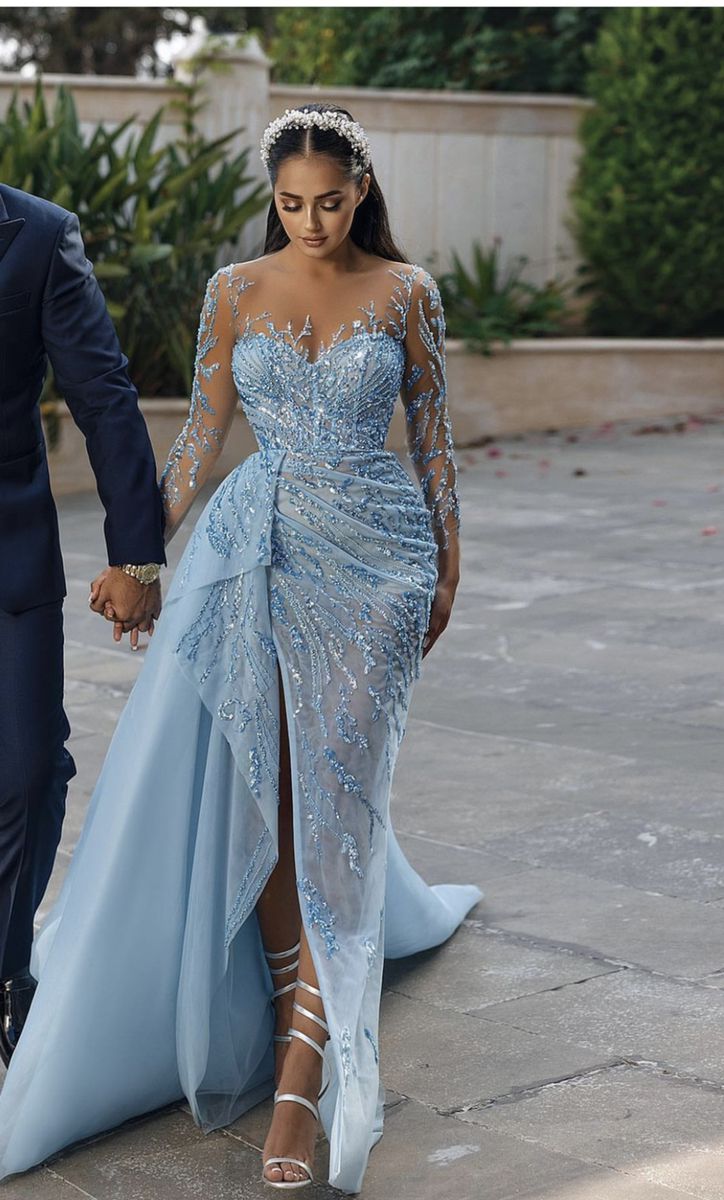
The Anchor: Define the subject clearly. Use static descriptors first (e.g., “A woman in a silk evening dress”).
The Motion: Keep movement descriptors precise and singular. Instead of “fast, shaky, chaotic motion,” use “smooth, slow-motion pan, 24fps cinematic pace.”
The Style: Define the lighting and camera lens. “Soft studio lighting, 35mm lens, depth of field.”
By separating these, you provide the AI with a logical hierarchy, which significantly reduces the likelihood of the model “guessing” the next frame incorrectly.
Advanced Techniques to Mitigate Micro-Flicker
If you’ve already generated a clip and it’s showing signs of flicker, don’t delete it yet. There are post-generation fixes and iterative prompting strategies that can “heal” the jitter.
1. The “Frame-Lock” Technique
One of the most effective ways to fix jitter is to provide a “seed image” that acts as a consistent reference point. By utilizing the Veo 3.1 image-to-video feature with a high-quality, non-flickering reference frame, you force the model to anchor its motion to a stable starting point.
2. Reducing Motion Intensity
Often, jitter is simply the result of the AI being pushed too hard. If your prompt includes words like “frenetic,” “wild,” or “chaotic,” the model is forced to interpolate frames at a speed that exceeds its current temporal stability threshold. Try swapping these out for “controlled,” “fluid,” or “steady.”
3. The Negative Prompt Strategy
In 2026, negative prompting has become more sophisticated. If you are still seeing flickering, explicitly tell the model what to avoid:
“Negative Prompt: flicker, jitter, micro-stutter, frame-tearing, color shifting, identity drift, blurry edges.”
Lighting and Texture: The Hidden Culprits
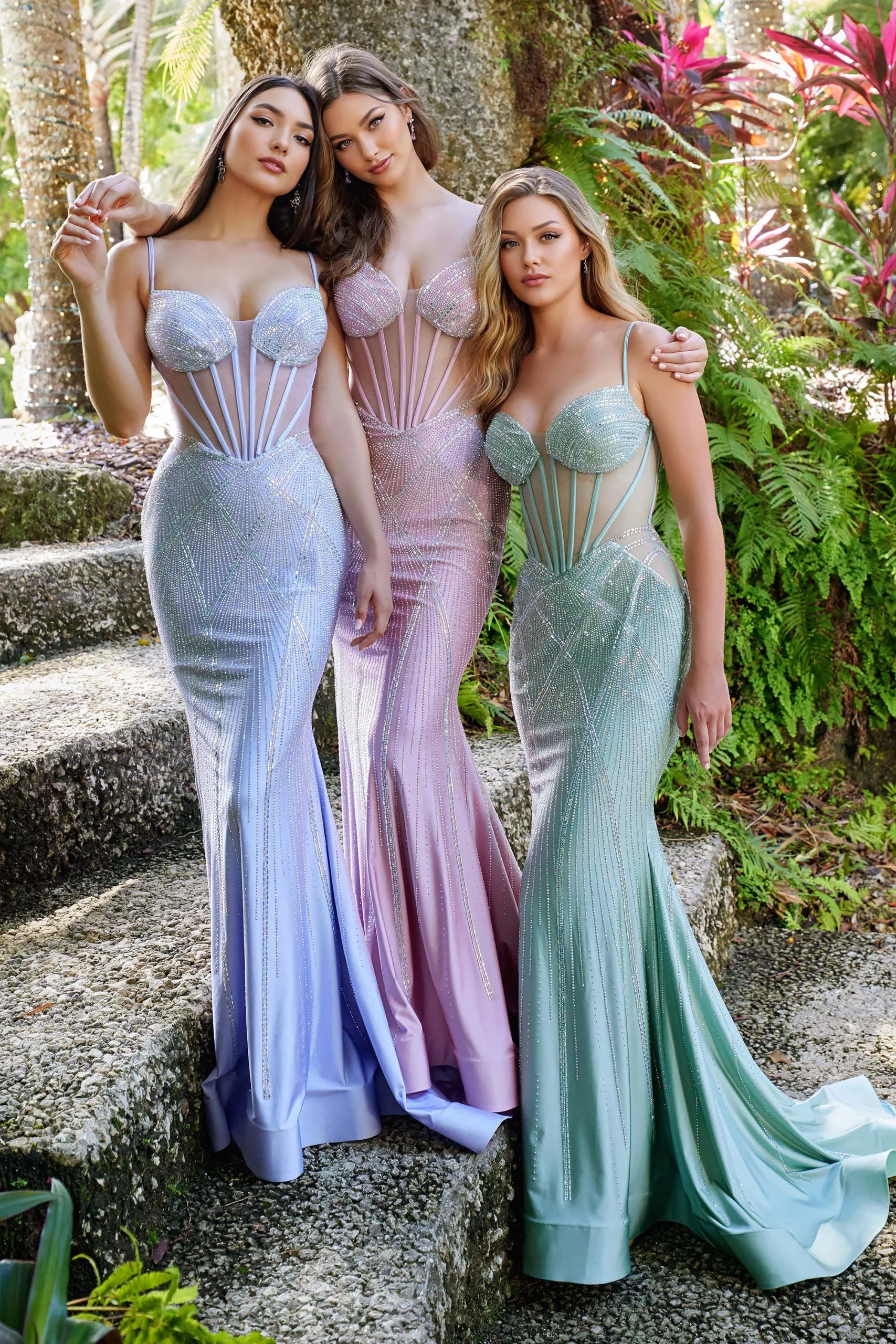
Did you know that certain textures in AI video are more prone to flickering than others? Highly reflective surfaces, intricate lace, or complex patterns can cause the model to struggle with light bounce, leading to intense flicker.
Tips for Stable Textures:
Simplify the Wardrobe: If you are generating a character, avoid overly busy patterns. A solid-colored dress or a classic suit will always generate with more stability than a patterned, high-contrast outfit.
Consistent Lighting: Avoid “strobe lighting” or “dappled sunlight through trees” if you are struggling with jitter. These lighting conditions force the model to recalculate light values on every single frame, which is a recipe for flickering.
Camera Distance: The closer the camera is to the subject, the more visible the jitter becomes. If you need a close-up, use a “static shot” prompt to minimize the model’s need to calculate motion parallax.
Troubleshooting Common Veo 3.1 Mistakes
According to the latest 2026 HeyDream usage statistics, the most common prompt error is “Subject Over-Description.” Creators often write 50+ words describing the subject’s personality, history, and background.
The Fix: The AI cares about pixels, not biography. Focus on physical characteristics. Use specific lens terminology (e.g., “85mm lens,” “f/1.8 aperture”) to help the model understand the look you want without complicating the motion logic.
Quick Checklist for Every Generation:
- Resolution Check: Are you using the native resolution for the aspect ratio? Upscaling after the fact often amplifies jitter.
- Motion Scale: Keep your motion scale settings moderate. Pushing the slider to the maximum is the #1 cause of temporal instability.
- Temporal Consistency: If the video has a “ghosting” effect, reduce the motion blur setting in your advanced options.
The Future of AI Video: Beyond 2026
As we look toward the end of 2026, the industry is moving toward “Temporal-Aware Generation,” where models are trained specifically on long-form consistency. However, until these tools become the default, mastering the art of the prompt remains your best tool.
Remember that Veo 3.1 is a tool, not a director. You are the director. By providing clear, concise, and stable instructions, you can bypass the common pitfalls that plague beginners. If you find that Veo 3.1 still isn’t quite hitting the mark for a specific stylistic choice, don’t hesitate to explore hybrid workflows—where you use AI for the base footage and professional-grade editing software to stabilize the final output.
Conclusion
Fixing flicker and jitter in Veo 3.1 is less about “fixing” and more about proactive prompting. By understanding the limitations of the model, simplifying your motion descriptors, and utilizing the 2026 framework of Anchor-Motion-Style, you can achieve professional-grade results that stand up to any scrutiny.
Stop fighting the AI and start guiding it. Use the negative prompts, respect the limits of temporal interpolation, and keep your lighting choices consistent. The world of AI video is evolving rapidly, and those who master the technical foundation today will be the ones creating the viral content of tomorrow.